Adapted from the official lab
Adapted from Automation: Workflows (Foundations) in Microsoft's Apps and Agents workshop (Power Series labs), built by Microsoft's Power CAT team. Source: https://microsoft.github.io/apps-agents-workshop/labs/lab.html?path=automation-03-workflow-foundations%2F03-workflow.md&branch=main.
The lab documentation is licensed under CC BY 4.0. Copyright Microsoft Corporation. The licence text is in the repository LICENSE-DOCS file.
IGOE AI adapted it into this UK follow-along checklist, including wording changes, a progress checklist, and this page layout. This is not an official Microsoft page and is not endorsed by Microsoft.
Watch the video
A walkthrough video will appear here once the YouTube ID is added.
What you will build
A Copilot Studio workflow called Validate Returns, tested and then added as a tool on an agent, using the same Northwind Orders data as the official automation series.
Licences and prerequisites
The official lab uses the new Copilot Studio workflows experience (see the source lab's prerequisites). You need maker access, Dataverse, and the Northwind Traders Orders data. Official Module 3 follows Module 1 (cloud flow) and Module 2 (RPA foundations). Module 2 is not in this IGOE set. You can still run this lab on the shared Orders data, but you will not have built the official Module 2 desktop-flow path here. Shared workshop prerequisites: labs/prereqs.md. Shared sample setup: solutions/README.md.
Labs that use generative AI can look different from the screenshots. If the result varies, complete the task from the intended outcome and the UI you see, as the official workshop notes.
Follow the lab
Work through the official steps below as a checklist. Tick each step as you finish it. Your progress is saved in this browser on this device only. Use the reset button to start again. Each step has a stable address such as https://igoe.ai/learn/apps-agents-workshop/validate-returns/#step-1 so a video can link to it.
Overview
In Module 1, you built Order Automation, a cloud flow that routes new orders through approval and creates an invoice. In Module 2, you fed it orders from a legacy file. Eventually those orders ship, arrive, and close, and that’s when customers start asking a new question: can I return this? Answering it means checking the order’s status, weighing its shipping fee, and getting a manager’s sign-off above certain values, today a slow, manual detour. In this module, you build Validate Returns: a workflow that a customer-facing agent calls as a tool, mid-conversation, and gets a grounded answer back, built on the same Orders data every module in this series shares.
A workflow is Copilot Studio’s automation format: a visual designer with native AI actions. It’s the pattern that makes agents reliable, instead of leaving a decision to the model alone, the agent calls a workflow where deterministic branches decide the business outcome (whether the order is eligible for return, and which approval tier its shipping fee requires), generative AI only drafts the customer- and approver-facing wording, and a person signs off on higher-value cases. This module is built in the new workflows experience (see Prerequisites).
Learning objectives
By the end of this module, you will:
- Create a workflow in Copilot Studio’s new workflow experience, triggered by an agent.
- Read Dataverse data with List rows and OData filters.
- Use Copilot’s expression builder to generate flow expressions from plain English.
- Branch logic with If/Else on a business rule (order status).
- Generate customer- and approver-facing messages with the M365 Copilot action.
- Route a numeric value into approval tiers with deterministic If/Else conditions.
- Add Human review approvals routed to Outlook.
- Test the flow from the designer, and consume it from a Copilot Studio agent.
Prerequisites
The scenario continues the earlier modules, but the build stands alone, you can complete this module without them. You need:
- A Microsoft Copilot Studio licence in your environment. For the current licensing, workflow availability, and how to obtain access, see the official Copilot Studio licensing documentation rather than assuming a specific commercial offer.
- The new workflows experience available in your environment. It’s in public preview, so labels and layouts may shift slightly as it evolves, if a control is named differently on your screen, look for the closest match.
- A security role that lets you read and edit the Orders table in Dataverse, Step 8 stages test data by changing order records, and the ability to receive and respond to human-review requests at your Outlook mailbox.
- The Northwind Traders solution installed and seeded with sample data, including the Orders table and its model-driven apps, Step 8 uses the Admin Management App to stage test data. Follow the import and Northwind Sample Data steps in solutions/README.md. Seeded orders arrive with empty statuses, so Step 8 also shows you how to stage the closed orders the return rule depends on, the module stands alone either way.
- Access to Outlook email with the same account, so human-review approvals can be delivered to you.
- Awareness that published workflows consume Copilot Studio capacity when they run, though workflows triggered by When an agent calls the workflow are no charge for Microsoft 365 Copilot to licensed users, and all test runs in this lab are free. Capacity and Copilot Credit metering change over time, so check the official billing and capacity documentation for current terms, and see Appendix A: Credit consumption & cost transparency for the full picture. Forecast usage with the agent usage estimator.
- Plan to clean up test data afterward: Step 8 changes the status and shipping fee of four shared Northwind sample orders. Note their original values before editing so you can restore them, or reseed the Northwind data afterward (see solutions/README.md).
Business use case
Scenario: Customers ask whether an order can be returned. Determining eligibility means checking the order status, evaluating the shipping fee, and, above certain thresholds, obtaining manager or senior-manager approval. Today that’s a slow, manual process, and a returns agent has to leave the conversation to work it out.
Solution: An agent calls the Validate Returns workflow, which confirms the order is closed, evaluates the shipping fee against approval tiers, generates the right customer or approver message, and requests human sign-off when needed, all from a single conversation turn. The agent relays the result back to the customer in plain language.
The return rule is grounded in the series’ own data. Each order moves through the statuses New → Invoiced → Shipped → Closed, and a return is only allowed once the order reaches Closed (status value 3), the point at which the customer has received it and its lifecycle is complete. For those closed orders, the shipping fee then decides the approval path: higher fees require a manager or senior manager to sign off before the return proceeds.
Names used in this lab
As you build, you’ll rename the workflow and each action to the names this module uses. The instructions introduce every name at the step where you create it, and later steps and dynamic-content pickers refer to those exact names, so rename as you go and your screen will keep matching the instructions.
Create the workflow
Checkpoint: Your draft workflow is named Validate Returns and shows two nodes: When an agent calls the workflow → Respond to the agent.
Read the order data
The agent passes an order number; the flow reads the matching order from Dataverse so every later decision is grounded in trusted data.
Checkpoint: The flow reads a single Order that matches the Order Number passed by the agent.
Branch on the return-eligibility rule
A return is only allowed when the order is closed. You capture the reply in a variable, then branch on the order’s status. In the Northwind Orders Status choice column the values are New = 0, Invoiced = 1, Shipped = 2, and Closed = 3, so a closed order has order status 3, that’s the value this branch tests.
Checkpoint: An If/Else condition splits the flow: the Order is not closed branch handles orders that aren’t closed yet, and the Else branch continues for closed, return-eligible orders.
Draft and return the not-eligible message
For an order that isn’t closed, the flow explains, in customer-ready language, why the return can’t proceed, and returns that message to the agent.
Checkpoint: For an order that isn’t closed, the flow generates a customer-ready “not eligible” message and returns it to the agent.
Decide the approval tier by shipping fee
For closed orders, the approval path depends on the shipping fee, and because that’s an exact numeric rule, you decide it with deterministic conditions, not an AI classifier. You compare the fee against two thresholds: a fee above $50 needs senior-manager sign-off, $10 to $50 needs manager sign-off, and below $10 is approved automatically. Reusing the If/Else condition from Step 3 keeps the decision predictable and easy to audit.
Cost note: Deterministic conditions also keep tier routing on the flat per-action billing rate and off the premium-token meter that a generative model can incur. See Appendix A.
Checkpoint: The flow now has three shipping-fee outcomes, each on a named branch you created in this step:
- Greater than 50, the senior-manager branch (fee above $50).
- Less than 50, Greater than 10, the manager branch (fee $10 to $50).
- The Else of Manager Approval Validation, the approved branch (fee below $10, no review).
The next steps refer to these as the senior-manager, manager, and approved branches, the names you just gave them on the canvas.
Generate messages and add human review
Each tier gets its own generated message, and the two higher-value tiers pause for a person to approve the return from their inbox.
Tip: Recognize the pattern? It’s the same tiered-approval idea as Module 1, where order values above 1,000 and 10,000 USD escalated to a manager and an executive, applied here at return time, and delivered through Human review instead of the Approvals connector.
Checkpoint: The two higher-value branches each generate an approver message and request a Yes/No approval over email; the approved branch generates an approved message.
Capture the outcome and complete the response
A review collects a Yes/No decision, but collecting it isn’t the same as acting on it. In this step each approval branch acts on the reviewer’s answer and writes a customer-ready message (approved or declined) into the response variable, so the agent receives a clear outcome rather than a raw Yes/No. Every branch still converges on the single Respond to the agent action.
Checkpoint: Every branch converges on Respond to the agent, and every branch, not-found, not-eligible, both approval tiers (approved and declined outcomes), and the approved (below-$10) branch, writes a customer-ready message into the response variable that the respond action returns.
Publish and test the workflow
Local testing lets you validate the whole flow, including the human-review approvals, before wiring it to a live agent. If a direct run is blocked with the AgentTriggerTest.notTestable error you met in Step 4, that’s expected for an agent-triggered flow, you’ll validate the same paths through the agent in Step 9.
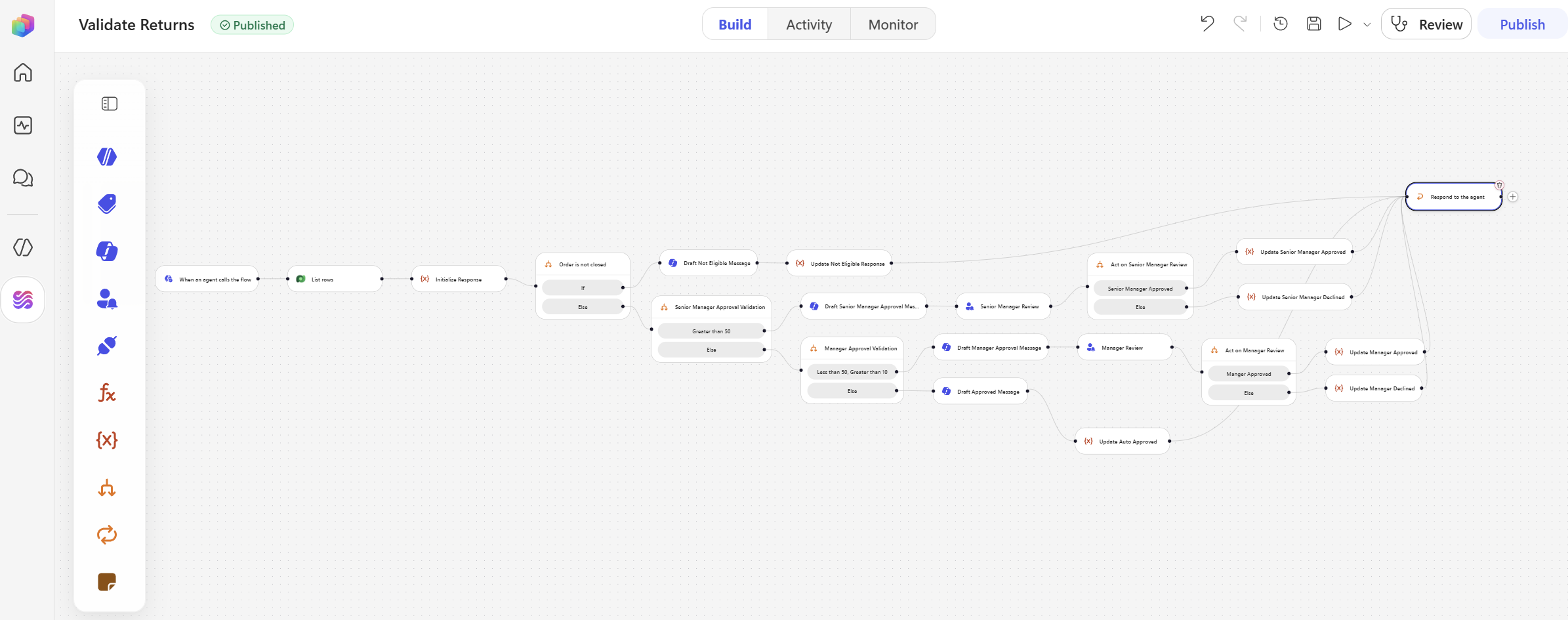
Figure: The complete Validate Returns workflow.
Checkpoint: Each order type traverses the expected path, the Activity tab highlights the route taken, and every run completes with a message returned to the agent.
Use the workflow in an agent
Finally, you add the published workflow to a Copilot Studio agent as a tool, the same handoff pattern that lets any agent call reliable, deterministic automations mid-conversation.
Checkpoint: The agent automatically calls the flow, interprets its response, and replies with a human-readable answer, sending an approval to your inbox when required, and failing safely (pending or unable-to-complete) when the tool returns nothing.
Before production: Return a structured workflow response, separate status, outcome, and customerMessage fields rather than a single untyped string, so the agent can act on the outcome without parsing prose. And test the tool across the full range of edge cases before exposing it to customers: a nonexistent order, a workflow failure, a pending or declined approval, and an approval timeout.
Step 10 (Optional): Handle an order that doesn't exist
The core build assumes the order number the agent passes matches a real order. If it doesn’t, List Order Rows returns zero rows, and every expression that reads “the first row” (the status check in Step 3, and the shipping-fee checks in Step 5) fails on an empty result. This optional step adds a not-found guard so the flow returns a clear, grounded answer instead.
You add one condition, right after Initialize Response and before Order is not closed, so the guard protects everything downstream.
Checkpoint: A nonexistent order number now returns a grounded “not found” message; a real order continues into the status and shipping-fee logic. Test both a real and a nonexistent order number to confirm each branch.
Step 11 (Optional): Read the shipping fee once into a variable
In Step 5 you insert the same shipping-fee expression twice, once in Senior Manager Approval Validation (> 50) and again in Manager Approval Validation (>= 10). Repeating the expression works, but it duplicates logic: if the source column ever changes, you’d have to fix it in two places, and each condition re-evaluates the same lookup. This optional step reads the fee once into a variable and reuses it.
Checkpoint: Both approval conditions now compare the single shippingFee variable instead of re-deriving the fee. The behavior is identical, but the fee is read in one place, easier to read, and a single point of change if the source ever moves. In production, the pieces would harden: reviewers would resolve to the real manager or senior manager for the order rather than yourself; and, most importantly, an approval a person might answer hours later belongs in an asynchronous pattern. Rather than hold the agent’s tool call open while a human decides (the synchronous shortcut this lab uses for teaching), a production design returns an immediate pending-review response and completes the approval out of band, notifying the requester through a supported follow-up channel once the decision is made. For the latest supported guidance on building and publishing workflows, see the Copilot Studio workflows documentation. Published runs also consume Copilot Studio capacity per action, so you’d monitor usage as the returns desk scales. What wouldn’t change is the shape you built, trusted data in, deterministic branches deciding, generative AI phrasing, and a human signing off where it matters.
Congratulations, you built a workflow that an agent calls mid-conversation to validate returns, combining Dataverse data, deterministic rules, generative messages, and human approvals into a single conversation turn.
Lab completion and cleanup
You built and tested the workflow end to end. Before you move on, tidy up so the shared environment and sample data stay clean for the next person:
- Restore the sample data. Step 8 changed the Order Status and shipping fee of four Northwind orders. Set those orders back to the values you noted before editing, or reseed the Northwind data from solutions/README.md.
- Remove test artifacts. Delete the test agent (Northwind Returns Agent) and any unpublished or superseded workflow versions you no longer need, along with any test approvals still sitting in your inbox.
- Review run history safely. You can inspect past runs from the workflow’s Activity tab and run history. When you share or export diagnostics, omit customer details and approval content so private data isn’t exposed.
Appendix A: Credit consumption & cost transparency
A workflow runs on Copilot Studio’s standard harness and bills in Copilot Credits (CC), the common currency across Copilot Studio (this replaced “messages” on 1 September 2025). Every figure here is in Copilot Credits only.
A note on names: Microsoft’s billing and licensing documentation refers to workflows as agent flows, so the billing meter is called “Agent flow actions” and the docs quoted below say “agent flow.” They’re the same thing you build in this module’s workflows experience.
Rates change, always verify. The rates below are current as of writing, but Microsoft updates them. For the authoritative figures always check Billing rates and management and the Copilot Studio Licensing Guide.
One meter: cost is per action
The billing model for a workflow is refreshingly simple. Per Microsoft: “every action your agent flow executes consumes Copilot Studio capacity.” There isn’t a separate meter for the different step types, List rows, an If/Else condition, a variable update, a Human review, the M365 Copilot message draft, and Respond to the agent each count as one action:
| Meter | What it covers | Rate |
|---|---|---|
| Agent flow actions | Every action the workflow executes, data, logic, AI, human-review, and respond steps alike | 13 CC per 100 actions (≈ 0.13 CC/action) |
So a run’s cost ≈ (number of actions on the path it takes) × 0.13 CC. The M365 Copilot draft step isn’t billed at a special generative rate here, inside a workflow it’s simply one more action.
One exception, premium models: if an AI action (like the M365 Copilot draft) runs on a premium/reasoning model, that step adds the documented Text and generative AI tools (premium) charge of 10 CC per 1,000 tokens on top of its action cost. On a standard model, there’s no extra token charge, just the per-action rate.
The big win for this workflow: no charge under an M365 Copilot licence
This lab’s workflow uses the When an agent calls the workflow trigger. Microsoft’s rules zero-rate that case: “Microsoft 365 Copilot licensed users and test runs (from both the flow designer and the agent’s test chat) are not affected” by capacity consumption. In practice:
- Every test you run in this lab, from the workflow designer (Step 8) and from the agent’s test chat (Step 9), is no charge.
- In production, when an M365 Copilot to licensed user’s agent calls the workflow via the agent trigger, the workflow’s actions are no charge too.
- Billing kicks in only for non-licensed users, or if you change the workflow to a different trigger (schedule, manual, automated), those consume the per-action rate above.
Per-path consumption in this lab (when billed)
A run traverses one path, so it pays only for that path’s actions. The action counts below are estimates, but you never have to guess: the run’s Activity view lists the exact actions it executed, and actual cost = that count × 0.13 CC.
| Path | Rough actions | Est. cost (when billed) |
|---|---|---|
| Not found (Step 10) / Not eligible | ~5 to 7 | ~0.7 to 0.9 CC |
| Approved (below $10) | ~7 to 9 | ~0.9 to 1.2 CC |
| Manager / Senior tier (adds Human review + act-on-review) | ~10 to 13 | ~1.3 to 1.7 CC |
Takeaway: each run is a fraction of a credit. Real spend is volume × actions per run, a returns desk at thousands of requests a day, and it’s zero while your agent’s users are M365 Copilot to licensed on the agent trigger.
Activities that drive higher usage
- Longer paths, more conditions, variable ops, or review steps mean more billable actions.
- Premium/reasoning models on AI actions, adds the 10 CC/1,000-token premium charge per such step.
- Volume of runs, the dominant factor at scale.
- Trigger type, a non-agent trigger forfeits the M365 Copilot no-charge inclusion.
- Retries/failures, a run that fails partway still bills the actions it executed.
Factors that influence variability
- Which path a request takes (approval tiers run more actions than not-eligible).
- Model tier on the AI actions (standard vs premium).
- Whether the caller is M365 Copilot to licensed (no charge vs billed).
- Human-review rework (a re-sent review adds actions).
What customers should monitor (business language)
- Actions per run, read straight from the run’s Activity view; × 0.13 CC = the run’s cost when billed.
- Runs × actions, model this before scaling the returns desk.
- Licence coverage, keep agent users M365 Copilot to licensed so agent-triggered workflows stay no-charge.
- Trigger type, keep the production tool on the agent-call trigger to preserve the inclusion.
- Model tier on AI actions, standard unless a premium model measurably helps.
- Where to look: the agent’s Analytics page and capacity reporting in the Power Platform admin center; forecast with the agent usage estimator.
Optimising consumption without reducing business value
- Deterministic branches over generative classification, this lab’s Step 5 routes fee tiers with If/Else conditions instead of the AI Classify action. Both are actions, but conditions never risk the premium-token charge and are predictable, a cleaner, cheaper design.
- Read a value once, Step 11’s optional
shippingFeevariable removes a duplicated lookup, trimming an action per run. - Only draft where needed, the below-$10 path needs no approver message, so don’t add one.
- Right-size the model on AI actions, a standard model avoids the premium token meter.
- Keep users M365 Copilot to licensed on the agent trigger to stay in the no-charge lane.
- Forecast, then monitor with the estimator and Analytics.
Learn more: Agent flows overview · Billing rates and management · Standard harness licensing · Agent usage estimator · Copilot Studio Licensing Guide
Appendix B: Ways to test a workflow
A workflow can be exercised at several points, and, usefully, testing never costs Copilot Credits: per Microsoft, “testing an agent flow in the designer or from the agent’s test chat doesn’t consume Copilot Studio capacity.”
| Where | How | Notes |
|---|---|---|
| Designer, Test panel | Save and Publish, then select Test and run Manually or Automatically; inspect each action’s output | You must publish first; a green checkmark means the run succeeded. |
| Agent test chat (Step 9 Preview) | Ask the agent a question that makes it call the tool | Exercises the whole loop, the agent’s orchestration plus the workflow. No capacity used. |
| Per branch | Stage inputs that force each path (not-eligible, each fee tier, and, with Step 10, not-found) | The four-path test intent this lab uses. |
Why the Run button can fail. A workflow with the When an agent calls the workflow trigger is built to run from an agent, so a direct designer run can return
AgentTriggerTest.notTestable. When that happens, validate those paths through the agent test chat in Step 9 instead, it isn’t a fault in your build.
Because you can’t publish a workflow that still has errors (the flow checker blocks it), a clean checker is the gate before any test run.
Edit and manage your agent flow
Appendix C: Workflow triggers & the sync-vs-async decision
A workflow starts with a trigger, and the type you choose determines how it runs, whether it can be an agent tool, and how it bills.
| Trigger | Starts when… | Can be an agent tool? | Billing |
|---|---|---|---|
| When an agent calls the workflow (this lab) | An agent invokes it as a tool | Yes | No charge for M365 Copilot to licensed users |
| Scheduled | A recurrence you define | No | Per-action rate |
| Automated / event | Another event fires | No | Per-action rate |
| Instant / manual | You run it on demand | No | Per-action rate |
The 100-second rule (the crux of this lab)
To be usable as an agent tool, a workflow must respond within a 100-second action limit, be published, and respond synchronously, the Asynchronous response toggle must be Off (under Networking in the Respond to the agent action’s settings). Microsoft’s guidance: “Optimize the flow logic, queries, and the amount of data returned so that a typical run is below this 100-second limit.”
This is exactly why a human approval breaks the synchronous shape: a person can’t reliably answer inside 100 seconds, so the run fails at Respond to the agent (the ActionResponseTimedOut / HTTP 504 you saw in Step 8). It isn’t a bug, a long-running human decision doesn’t fit a synchronous tool call.
The production pattern: respond now, approve later
Rather than hold the tool call open, a production design returns an immediate pending-review response, runs the approval out of band, and notifies the requester through a supported follow-up channel once the decision is made. The synchronous build in this lab is a teaching shortcut; the asynchronous pattern is the durable shape.
Add an agent flow as a tool · Agent flows overview
Appendix D: The expression builder & common workflow expressions
Several steps in this workflow use Insert expression to compute a value the dynamic-content picker can’t offer directly. Copilot’s expression assistant turns a plain-English prompt into an expression, you don’t hand-write it. Here’s what this workflow generates, and why.
| Where | Plain-English prompt | What it does (conceptually) |
|---|---|---|
| Step 3 status check | “first row… order status ID value” | first(<List Order Rows>)['nwind_orderstatusid'], reads the status of the first matched row |
| Step 5 fee checks | “shipping fee from the first row” | the same first(...) shape, reading the shipping-fee column |
| Step 10 not-found guard | “number of rows returned” | length(<List Order Rows output>), the row count, compared to 0 |
Why first(...)? List rows returns a collection; first() takes the single top row (you set Row count = 1), which avoids wrapping the action in an Apply to each loop.
Why the reference looks unusual. The assistant refers to the List rows action by an internal connector ID, not its display name, so your expression text differs from anyone else’s. Don’t “tidy” it; confirm it reads the first row and the correct column, then accept it as generated.
Tip: Prefer the assistant over hand-writing expressions, describe the value you want, generate it, and validate the result rather than memorizing syntax.
Edit and manage your agent flow
Appendix E: The single-variable, single-exit pattern
This workflow uses one deliberate design shape: every branch writes its message into a single response variable, and every branch converges on one Respond to the agent action. It’s worth understanding as a reusable pattern.
Why it works
- One source of truth,
responseholds “the answer,” whatever path produced it (not found, not eligible, approved, declined, pending). - One exit, a single Respond to the agent binds its output to
responseonce. Add a path later and it just writes the variable; the exit needs no change. - Fewer moving parts, no duplicated respond actions to keep in sync.
The convergence warning (expected here)
The flow checker may warn that multiple nodes lead into one action. Here that’s safe, because every converging branch sets response before the shared exit, so the exit always returns a defined value. Elsewhere, treat it with more care, if converging branches don’t all set the shared state, it can signal fragile or unsupported control flow. Confirm each branch updates response.
When the pattern doesn't scale
If different callers need different-shaped outputs, a single untyped string strains. The production upgrade is a structured response, separate status, outcome, and customerMessage fields, so the agent acts on typed fields instead of parsing prose.
Edit and manage your agent flow
Appendix F: Deterministic vs generative decisions in a workflow
A workflow mixes two kinds of decision. Knowing which to reach for keeps it reliable and cheaper.
| Deterministic (If/Else, Switch) | Generative (AI action, e.g. M365 Copilot, Classify) | |
|---|---|---|
| Best for | Exact rules: numbers, status, dates, thresholds | Language and meaning: drafting text, classifying intent |
| Predictability | Same input → same output, every time | Can vary; may need examples to steer |
| Cost | Flat per-action rate | Per-action, plus the premium-token charge on a premium/reasoning model |
| This lab | Fee tiers (Step 5), status check (Step 3) | Drafting customer/approver messages (Steps 4, 6) |
The design rule: let deterministic branches decide the business outcome (eligibility, approval tier), and let generative AI only phrase the customer-facing wording. That’s why Step 5 uses If/Else numeric conditions rather than the AI Classify action for the fee thresholds, a currency boundary is an exact rule, and a deterministic comparison is more reliable and avoids the premium-token risk.
Agent flows are deterministic by nature: “the same input always produces the same output, making them reliable and predictable.” Reserve AI actions for genuinely semantic work (natural language, ambiguous categorization), and see the cost angle in Appendix A.
Appendix G: Human review / approval mechanics
The Human review action pauses the workflow for a person to decide, then resumes with their answer. This lab uses it for the manager and senior-manager tiers; the settings you configured were:
| Setting | What it does | As set in this lab |
|---|---|---|
| Title | The heading the reviewer sees | Return Review Needed |
| Message | The body, here, the drafted approver message | The Response of the draft action |
| Assigned to (first to respond) | Who can respond; the first answer wins | Yourself (test-only) |
| Channel | Where the request is delivered | Outlook (an actionable email) |
| Inputs | The fields the reviewer fills; at least one is required | A Yes/No with a clear question |
Test-only vs production
Assigning yourself keeps the lab self-contained. In production, the reviewer resolves to the real manager or senior manager for the order, via a lookup, a Dataverse role, or a manager field, not a hard-coded person.
The timing constraint (important)
A Human review can take minutes or hours, but an agent-called workflow must respond within the 100-second limit (see Appendix C). So a synchronous review inside an agent tool is inherently fragile, that’s the 504 you met in Step 8. Production moves the approval out of the synchronous path: respond “pending” immediately, and complete the approval asynchronously.
Acting on the outcome
Collecting a Yes/No isn’t enough, branch on it (Step 7) so Yes yields an approved message and No a declined one, and treat no response (empty or expired) as pending, never as approved.
Add an agent flow as a tool · Agent flows overview
Recommended next step
You’ve built the customer-facing side: an agent that answers shoppers with grounded, approved decisions. Continue to Module 4: CUA, where a second agent, the Northwind Operations Agent, takes on the operations side, using computer use to operate a website no connector or API can reach.
What is likely to go wrong
| Symptom | Likely cause | What to try |
|---|---|---|
| You cannot find the sample app, tables or orders. | The Northwind Traders solution is missing, or you are in the wrong environment. | Check the environment picker, then import and seed the sample using the official solutions README. |
| A feature or preview button is missing. | The environment region, early release setting, or a required role is not in place. | Compare your environment with the official prerequisites for this lab, including early release and Copilot Studio Authors where the source lab requires them. |
| A connector or flow asks for a licence. | The account is missing a required licence, such as Outlook for the supervised-agents lab, or a premium connector. | Use a licensed test account in the sandbox, or follow the official trial steps if the source lab includes them. Do not run this in production to work around a licence gap. |
| A flow, workflow or agent run fails on the first test. | A connection is not signed in, or sample data does not match the filter in the step. | Open connections and sign in, then check the record values against the official filter or test data. |
| Generated wording or a chart looks different from a screenshot. | Generative AI results vary, as the official workshop says. | Judge the result against the intended outcome and continue if the task is complete. |
Open the original Power CAT lab if a UI name has changed, and use what you see on screen rather than inventing a missing click.
Join the free monthly webinar. A 40-minute live taster on Microsoft Teams.
See where your organisation stands
Complete the short AI and automation scorecard. Your answers stay in your browser. Nothing is sent or stored, and there is no email sign-up.