Adapted from the official lab
Original Microsoft Learn module
Adapted from Guided Project - Create and manage automated processes with Power Automate on Microsoft Learn. Copyright Microsoft Corporation. Open the official module.
The official module units: Introduction, Prepare, Exercise: Build a Power Automate flow to send automated emails, Module assessment, and Summary.
IGOE AI adapted it into this UK follow-along checklist, including wording changes, a progress checklist, and this page layout. This is not an official Microsoft page and is not endorsed by Microsoft.
Watch the video
A walkthrough video will appear here once the YouTube ID is added.
What you will build
A custom Opportunity table in Dataverse for Contoso Coffee, and a scheduled Power Automate cloud flow named New Sales Opportunities that lists rows with status New and emails that list as an HTML table.
Scenario
You recently joined Contoso Coffee as a Power Automate consultant. Contoso produces consumer and commercial coffee makers. The sales team wants to keep opportunities in Dataverse instead of offline Excel spreadsheets, and to receive a regular email of open opportunities so they are not missed.
Learning outcomes
By the end of this lab, you will be able to:
- Customise a Dataverse database to meet business requirements.
- Create a Power Automate flow based on provided specifications.
Notes on the official module
- The official scenario talks about sharing opportunities daily. The official exercise sets a scheduled flow that repeats every one week and asks you to select Saturday and Sunday to remove those days. This checklist follows that official schedule, and notes the daily wording in the scenario.
- The official introduction refers to APL-7002. The module title on Microsoft Learn is Guided Project: Create and manage automated processes with Power Automate.
- The official table display name is Opportunity. It may appear under the plural name Opportunities when you build the flow.
- The official module assessment is on Microsoft Learn. This page does not reproduce the questions.
Lab instructions
Prepare your environment
You need access to Microsoft Power Platform, Dataverse and Power Automate. If you do not already have an environment, you can start a trial.
Create the Opportunity table
Create a custom table and columns for Contoso Coffee sales opportunities.
Note. Make a note of the name (as opposed to the display name) of the Opportunity Status column. You will need that name when you create the flow filter. You can find it by going to Tables > Opportunity > Columns.
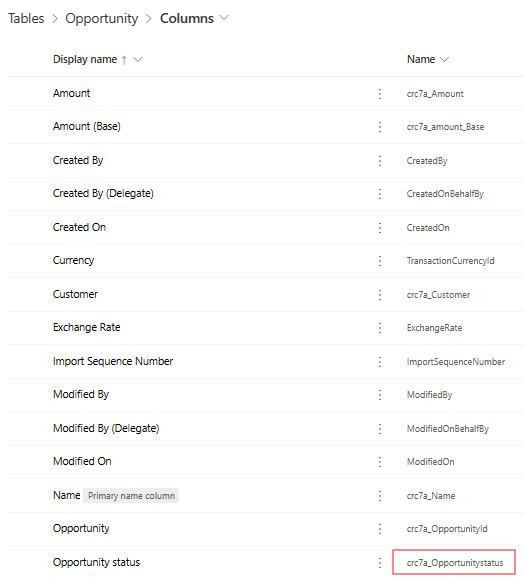
Figure: Finding the logical name of the Opportunity Status column.
Create a scheduled flow
Wrap-up
You created a custom table with custom columns in Dataverse for each sales opportunity, built a Power Automate flow to email lists of new sales opportunities, and tested the flow.
If you want to take the official knowledge check, use the module assessment on Microsoft Learn. This page does not include those questions.
Join the free monthly webinar. A 40-minute live taster on Microsoft Teams.
See where your organisation stands
Complete the short AI and automation scorecard. Your answers stay in your browser. Nothing is sent or stored, and there is no email sign-up.